UCSS is a high-performance VPN service designed for internet access in China, with a focus on speed, connection stability, and low latency. It's particularly well suited for bandwidth-intensive activities such as video streaming and gaming.
Instead of relying on conventional VPN protocols, UCSS uses Shadowsocks, a technology designed to bypass the Great Firewall of China (GFW), China's system for filtering and restricting internet access.
In this guide, we'll walk you through the entire process of signing up for UCSS and getting started, with screenshots for each step.
The whole process from registration to setup should take less than 10 minutes.
How to Sign Up for UCSS VPN: Step-by-Step Registration
Step 1: Visit the UCSS Official Website
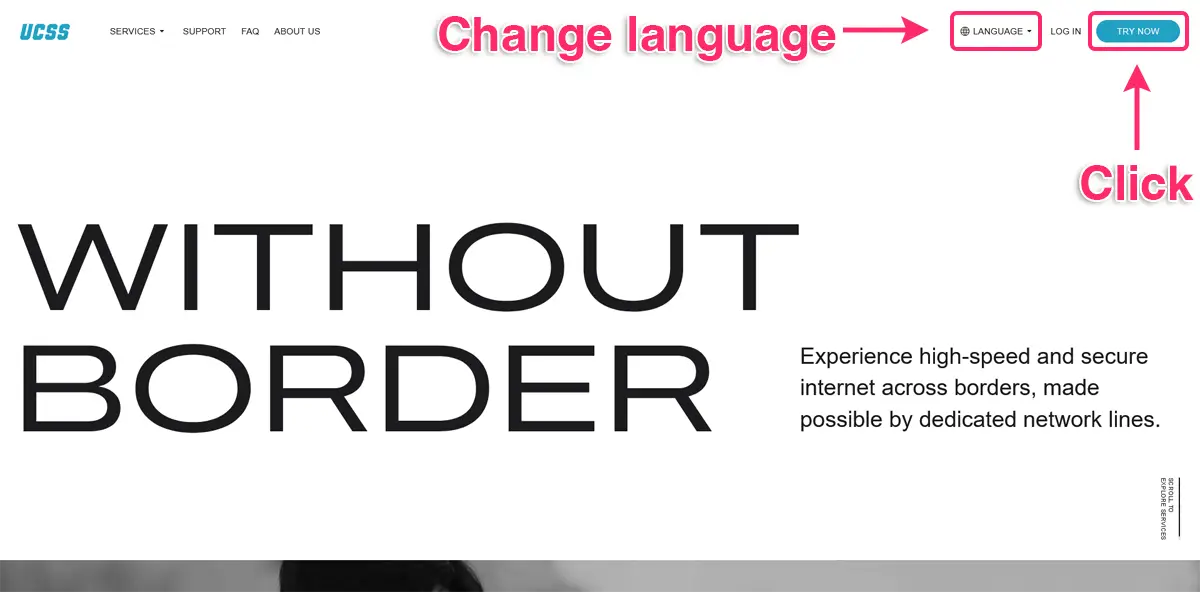
Start by visiting the UCSS Official Website and clicking “TRY NOW”.
If you need to change the website language, click “LANGUAGE” in the top-right corner of the page.
Step 2: Choose a UCSS Pricing Plan
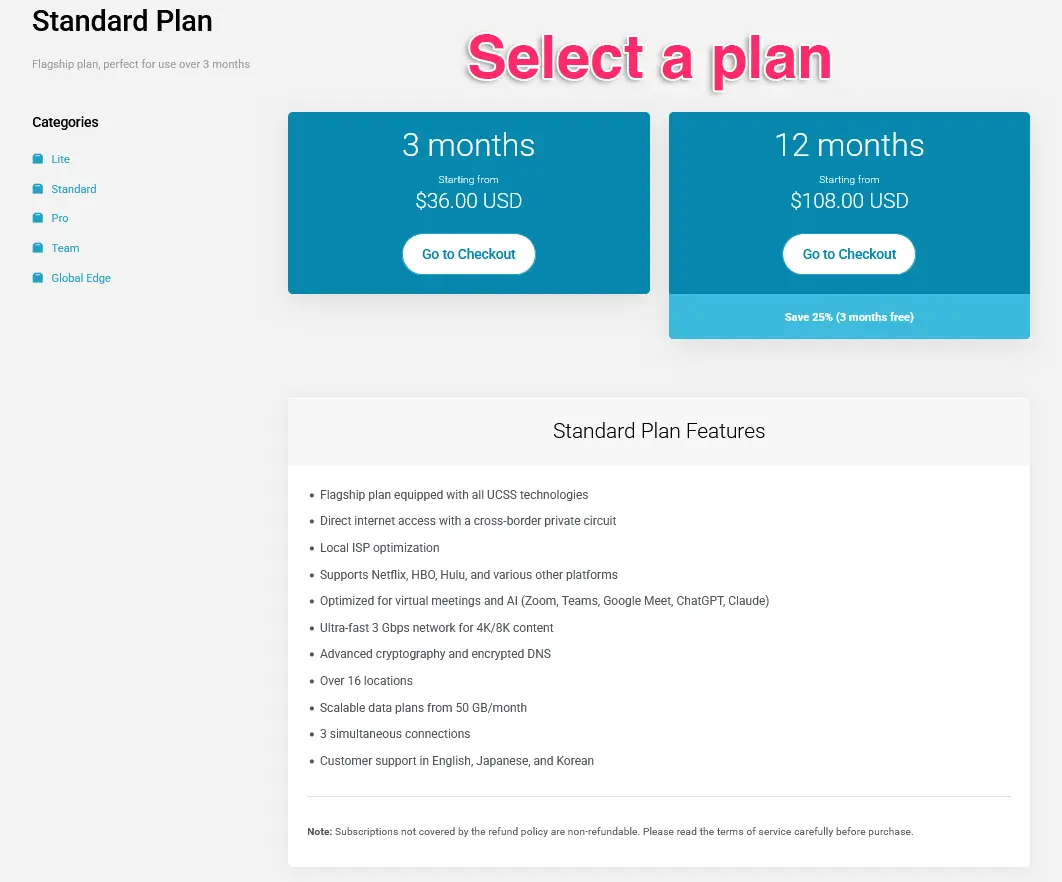
Next, choose the plan that best fits your needs and click “Go to Checkout”.
UCSS Plans and Pricing
| Plan | Works in China | Simultaneous Connections | Servers | Monthly Data | Best For |
| Lite | ◯ | 2 devices | 6 countries United States ◯ |
Unlimited (Speed is reduced after exceeding 200GB/month) |
Use in China Short-term users |
| Standard | ◯ | 3 devices | 16 countries United States ◯ |
50GB-300GB/month |
Use in China Recommended if you're not sure which plan to choose |
| Pro | ◯ | 2 devices | 4 countries United States ◯ |
100GB-300GB/month | Use in China Optimized for stability and low latency (low ping) Ideal for gaming, online meetings, and live streaming |
| Team | ◯ | 3 connection points (Unlimited devices) |
Static IP United States × (Planned) |
1,000GB-3,000GB/month | Use in China Teams and organizations |
| Global Edge | - | 3 devices | 16 countries United States ◯ |
200GB–1,000GB/month | Available worldwide For users outside China |
UCSS currently offers five plans. Pricing depends on the length of your subscription and the amount of high-speed data you choose each month.
Longer subscriptions and higher data allowances generally come with larger discounts, making them more cost-effective if you plan to use UCSS regularly.
Server availability also varies by plan, so it's worth checking which locations are included before you subscribe.
Which UCSS Plan Should You Choose?
The first thing to consider is where you'll be using UCSS.
If you need UCSS outside China, choose the Global Edge plan.
If you're using UCSS in China, here's a simple way to choose:
- Lite - Best for short-term use if you prefer a monthly subscription.
- Standard - A good starting point if you're not sure which plan to choose.
- Pro - Designed for users who prioritize connection stability and low latency, particularly for gaming, online meetings, and live streaming.
- Team - Intended for teams or organizations that need to connect multiple users.
If the standard data allowances aren't enough, UCSS also offers Custom Orders for users with higher data requirements.
For more information, contact UCSS support via the UCSS Official Website.
Step 3: Choose Your Monthly Data Allowance
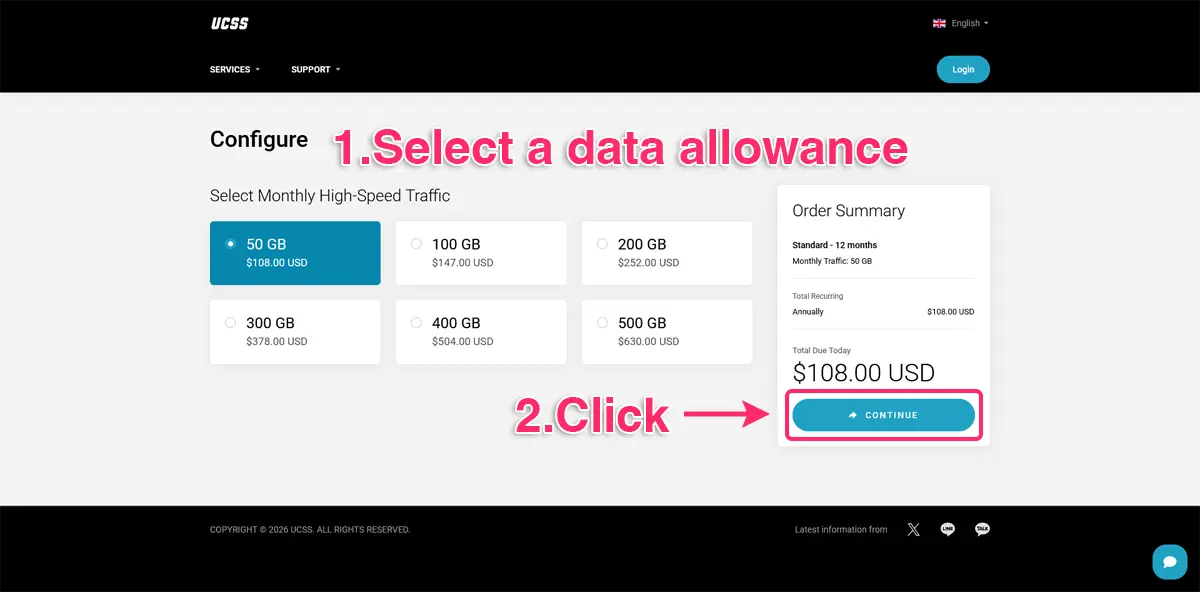
Once you've selected a plan:
- Choose how much high-speed data you need each month.
- Click “CONTINUE”.
UCSS Monthly High-Speed Data Allowance.
| Plan | 1 Month | 3 Month | 12 Month |
| Lite | Unlimited※ $29 | - | - |
| Standard | - | 50 GB $36 100 GB $49 200 GB $84 300 GB $126 400 GB $168 500 GB $210 |
50 GB $108 100 GB $147 200 GB $252 300 GB $378 400 GB $504 500 GB $630 |
| Pro | - | 100 GB $300 200 GB $560 300 GB $810 |
- |
| Team | - | 1,000 GB $600 2,000 GB $960 3,000 GB $1,260 |
- |
| Global Edge | 200 GB $15 500 GB $30 1,000 GB $45 |
200 GB $40 500 GB $80 1,000 GB $120 |
200 GB $120 500 GB $240 1,000 GB $360 |
※ The Lite plan includes unlimited data, but speeds are reduced after 200GB of monthly usage.
Estimated Data Usage
Video streaming
- SD (480p): around 700MB–1GB per hour
- HD (720p): around 1–2.5GB per hour
- 4K: up to 16GB per hour
These are approximate figures for services such as Netflix and YouTube. Actual data usage will vary depending on the service, video quality, and other factors.
As you'd expect, higher video resolutions consume considerably more data.
Video calls and online meetings
- 720p: around 500MB–1.5GB per hour
- 1080p: around 1.5–3GB per hour
As a rough guide, 50GB per month can provide around 1–2 hours of video streaming per day, depending on the resolution and streaming service.
If you mainly use UCSS for everyday tasks such as email, social media, web browsing, and occasional video calls, 50GB may be enough for your needs.
And if your needs change later, most UCSS plans allow you to adjust your monthly data allowance.
Step 4: Create Your Account and Choose a Payment Method
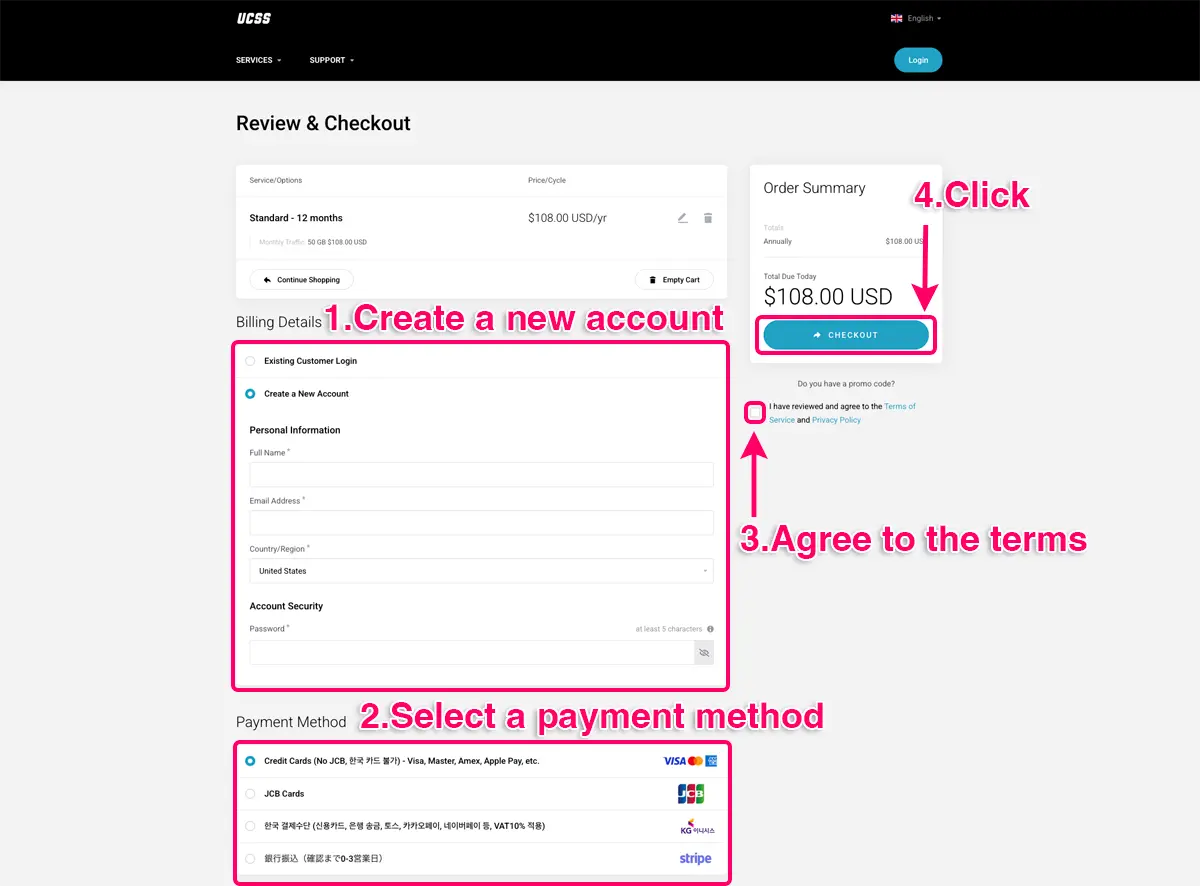
You'll now need to create your UCSS account and select how you want to pay.
- Enter your name, email address, nationality, and password.
- Choose your preferred payment method.
- Agree to the Terms of Service and Privacy Policy.
- Click “CHECKOUT”.
UCSS Payment Methods
UCSS supports the following payment methods:
- Visa, Mastercard, and American Express
- JCB
- KG Inicis
- Bank transfer
Cryptocurrency payments are not currently supported.
If you pay by bank transfer, keep in mind that it may take up to three business days for UCSS to verify and confirm your payment.
Step 5: Complete Your UCSS Payment
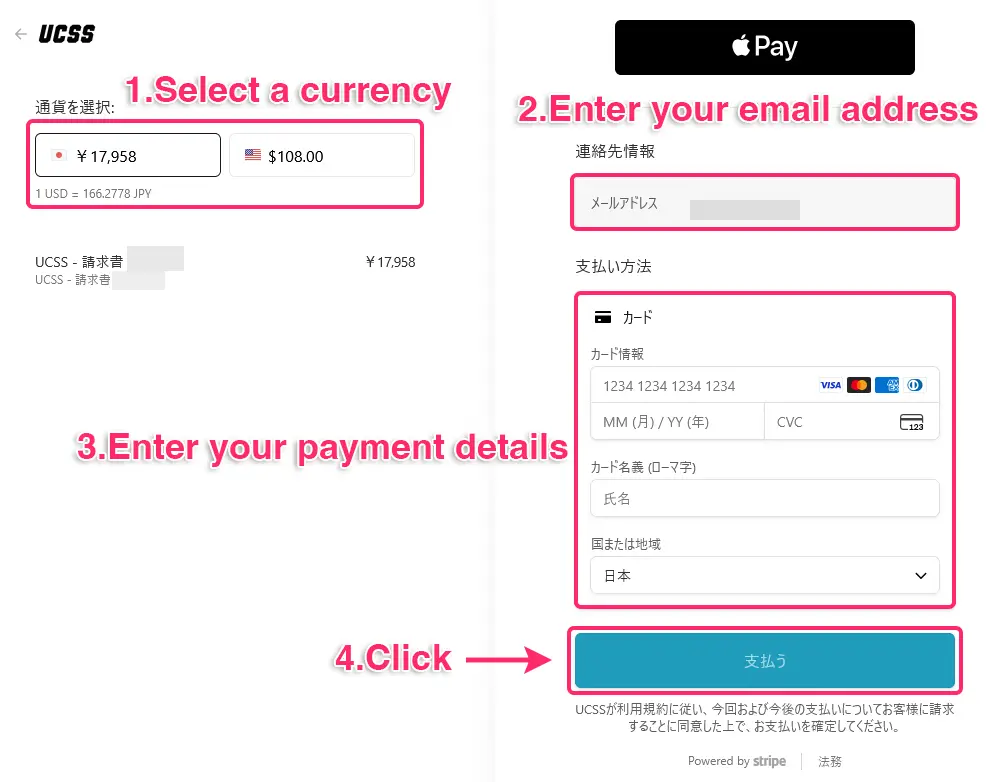
You're almost done. On the payment page:
- Select your preferred currency.
- Enter your email address.
- Enter your payment details.
- Click “Pay”.
Once your payment has been completed and confirmed, your UCSS registration is complete.
You can then move on to setting up UCSS on your device.
UCSS Official Website
How to Set Up and Use UCSS VPN
Once you've signed up, the next step is to configure UCSS on your device.
We've put together separate step-by-step guides for Windows, macOS, Android, iPhone, and iPad, so you can follow the instructions for the device you're using.
UCSS Setup Guides
- How to Set Up UCSS on Windows | Step-by-Step Guide
- How to Set Up UCSS on Mac | Step-by-Step Guide
- How to Set Up UCSS on Android | Step-by-Step Guide
- How to Set Up UCSS on iPhone and iPad | Step-by-Step Guide
More About UCSS
- How to Cancel UCSS
- UCSS Review | Performance, Speed, and Test Results
