In our How to Sign Up for UCSS VPN: Registration and Setup Guide, we covered how to create a UCSS account and get started.
If you haven't signed up yet, you can do so at the UCSS Official Website.
In this guide, we'll show you how to set up and use UCSS on a Mac, including:
- How to download and install the UCSS app on Mac
- How to use the UCSS app and connect to a VPN server
We'll walk you through each step with screenshots so you can easily follow along.
How to Set Up the UCSS VPN App on Mac
Step 1: Download and Install the UCSS App on Mac
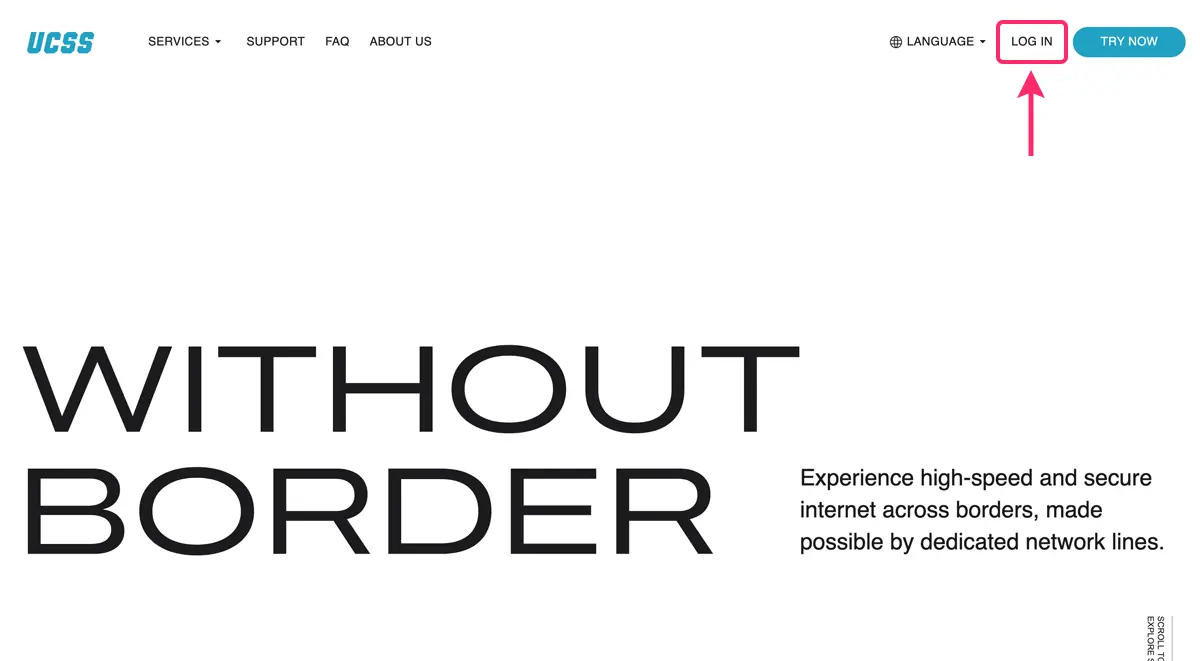
First, go to the UCSS Official Website and click “Login” in the top-right corner of the page.
You can change the website language from the “LANGUAGE” menu.
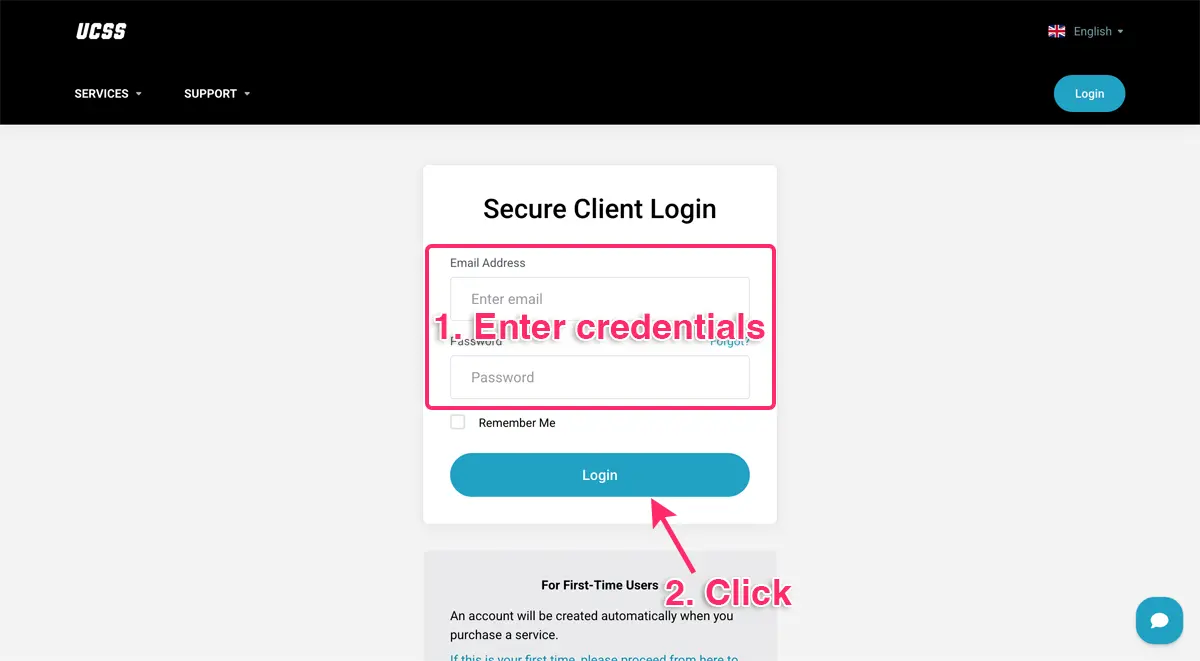
Log in as follows:
- Enter your email address and password.
- Click “Login.”
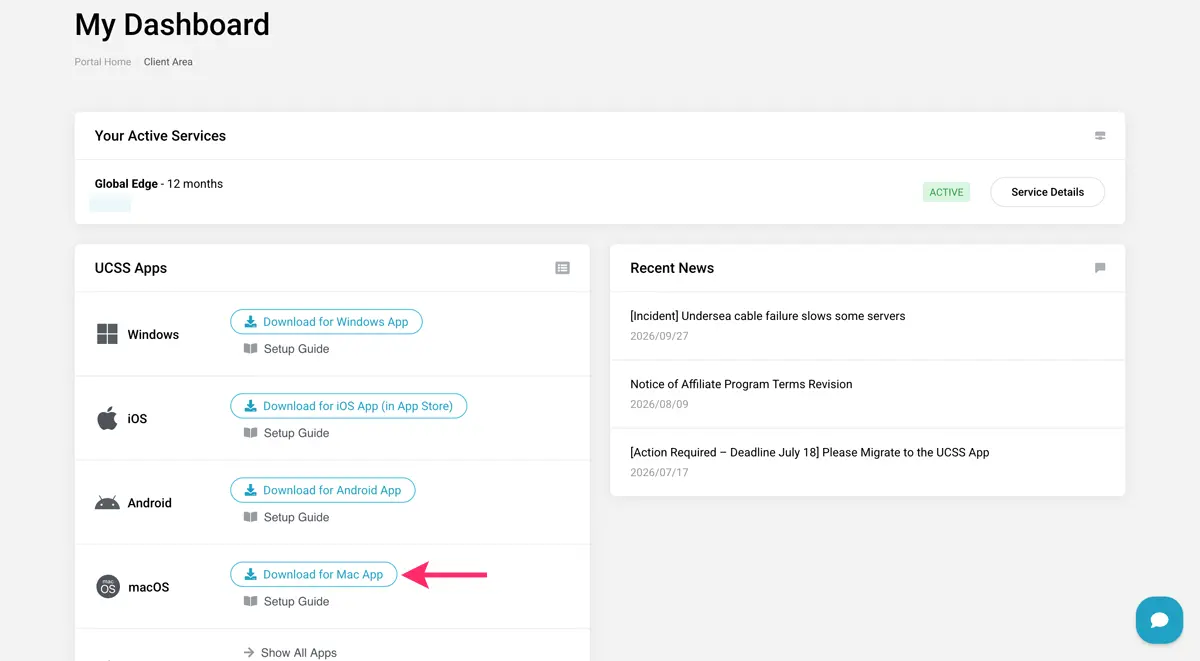
Once you're logged in, click “Download for Mac App” to download the UCSS app for Mac.
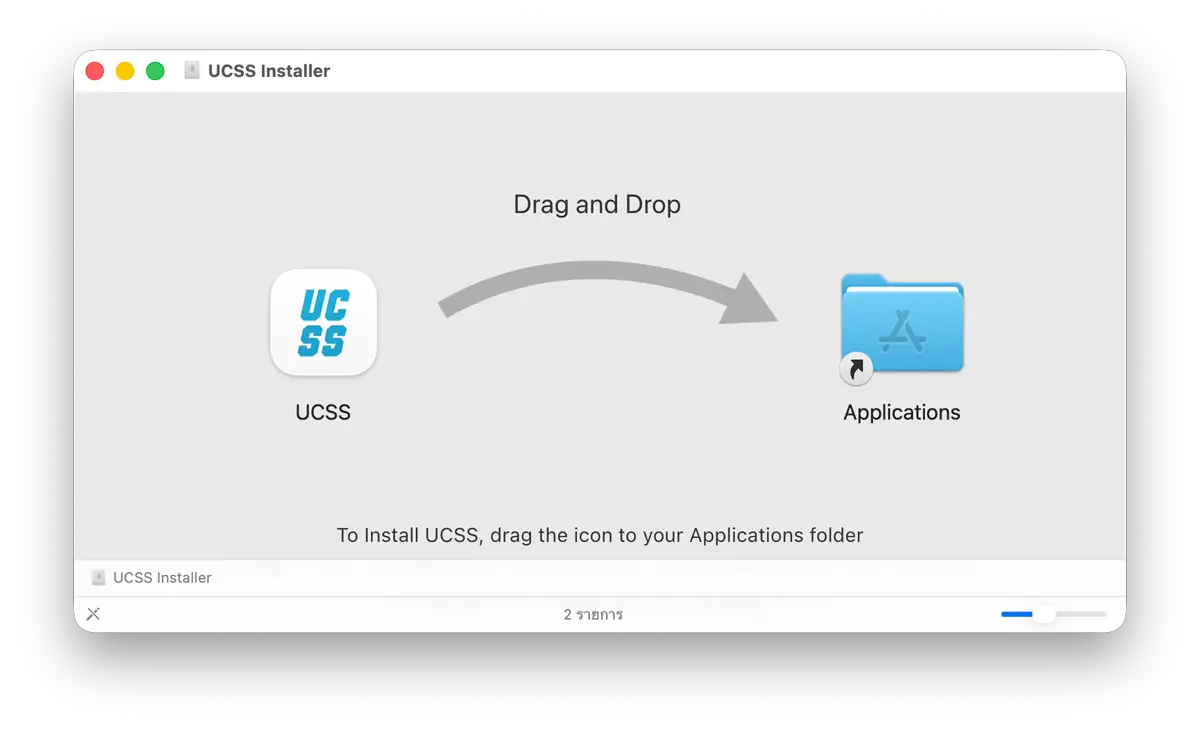
Drag “UCSS.app” into the “Applications” folder.
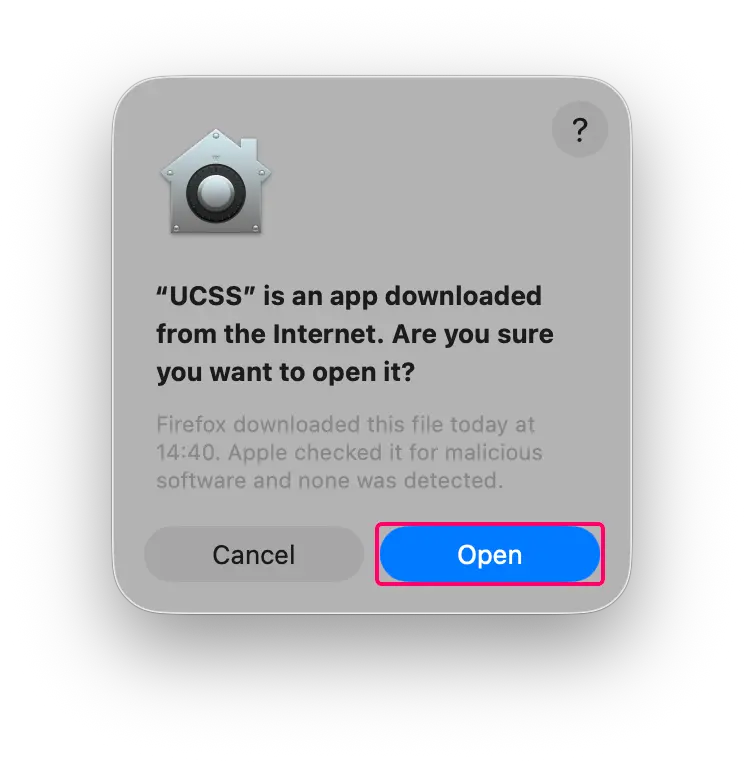
Click “Open.”
On some Macs, UCSS may ask you to install an additional component required for the app to work properly.
If this prompt appears, click “Install,” enter your Mac password, and then click “OK” to continue.
If you don't see this prompt, you can skip this step and proceed to sign in.
Step 2: Open the UCSS App and Sign In
Once the installation is complete, open the UCSS app.
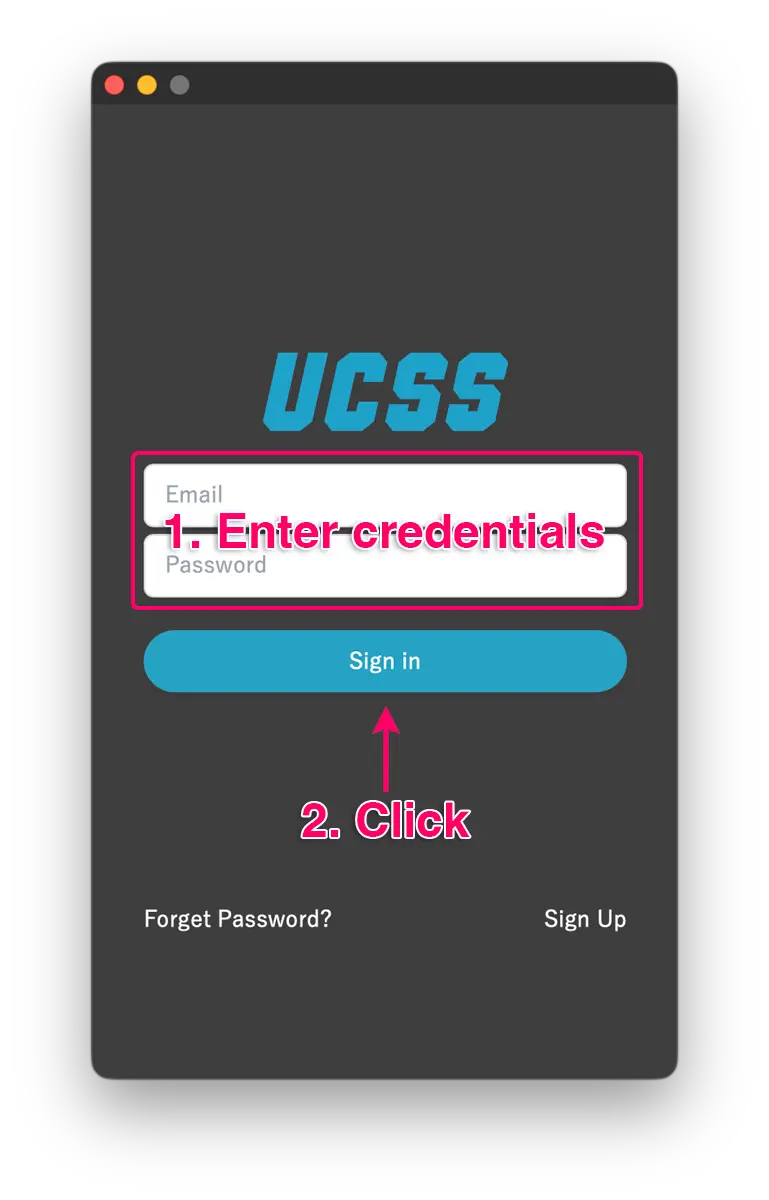
Sign in as follows:
- Enter your email address and password.
- Click “Sign in.”
That's it—you should now be signed in to UCSS on your Mac.
For the latest information about the Mac app and download options, check the UCSS Official Website.
How to Use the UCSS VPN App on Mac
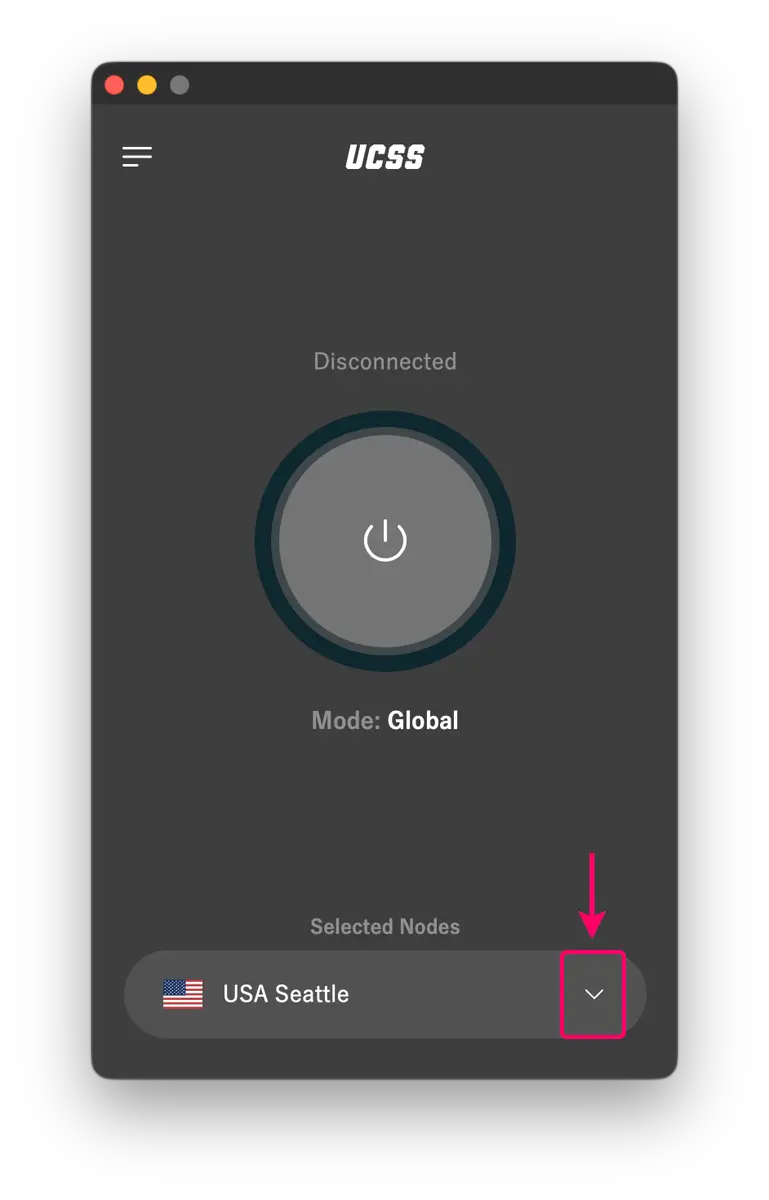
Once you're signed in, using the UCSS app on Mac is straightforward.
First, click the server selection button in the bottom-right corner of the app to choose the VPN server you want to connect to.
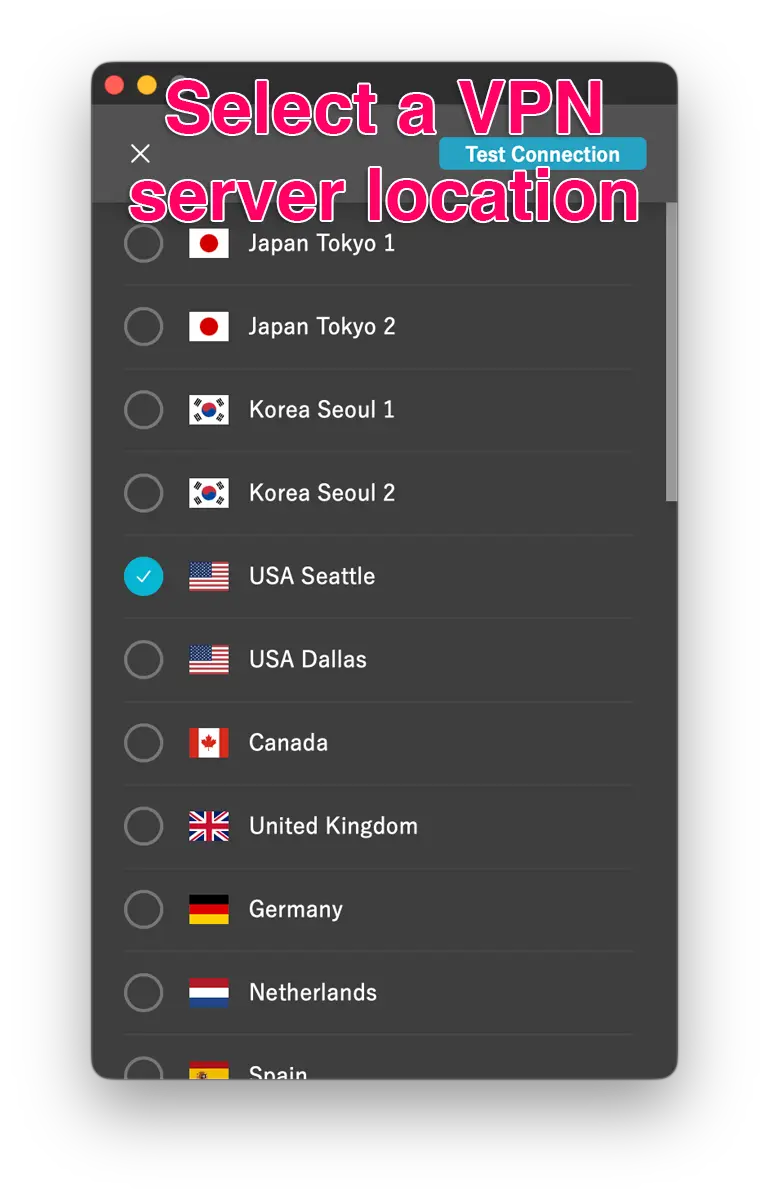
Choose a VPN server location based on the websites or services you want to access.
For example:
- Choose a UK server for websites and services available in the UK.
- Choose a US server for websites and services available in the US.
- Choose an Australian server for websites and services available in Australia.
How to Choose a UCSS Server
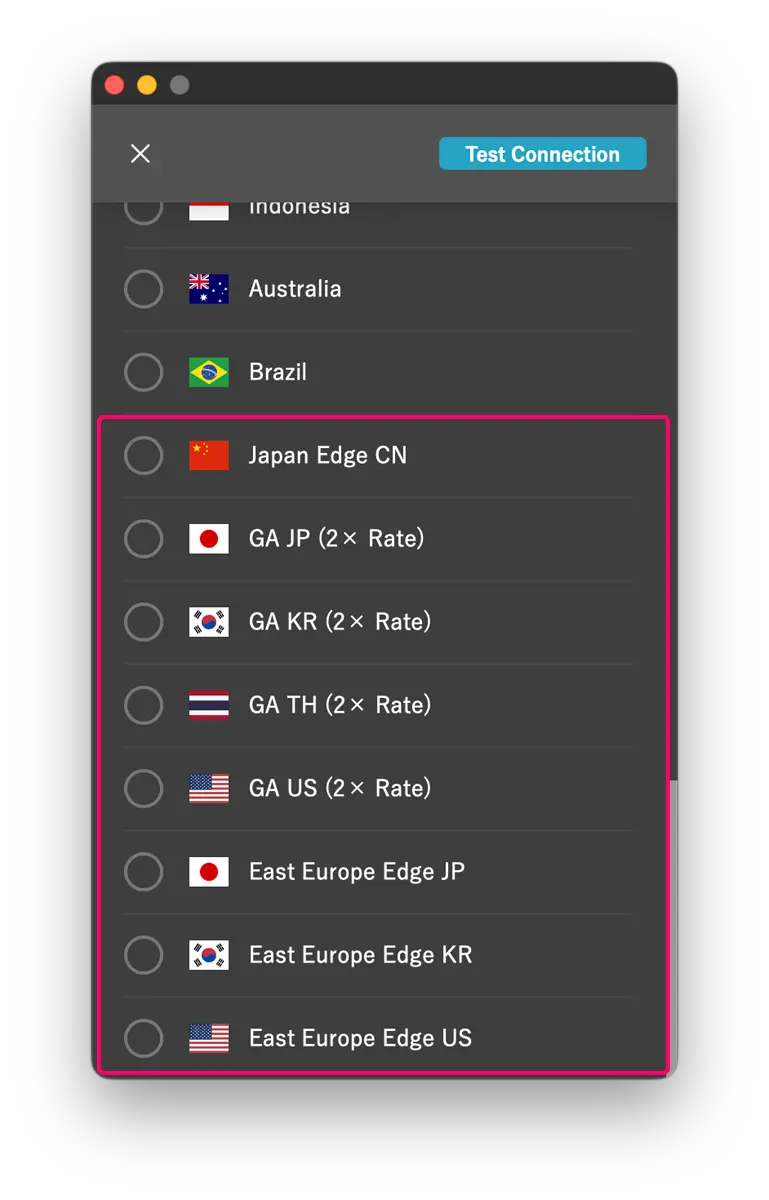
UCSS offers several types of servers, each optimized for different use cases.
- Japan Edge CN Server: Optimized for accessing Chinese services from outside mainland China.
- GA (2× Rate) Server: Designed for low-latency connections and reduced packet loss. These servers consume data at twice the normal rate, but their low ping makes them particularly useful for latency-sensitive activities such as online gaming. GA servers are one of UCSS's notable features.
- East Europe Edge Server: Optimized for connections from Russia and nearby regions.
The websites and services you can access may vary depending on the server you're connected to. Connection speeds can also vary depending on how busy each server is.
If you're unable to connect to a service or the connection feels slow, try switching to a different server.
How to Choose a UCSS Connection Mode
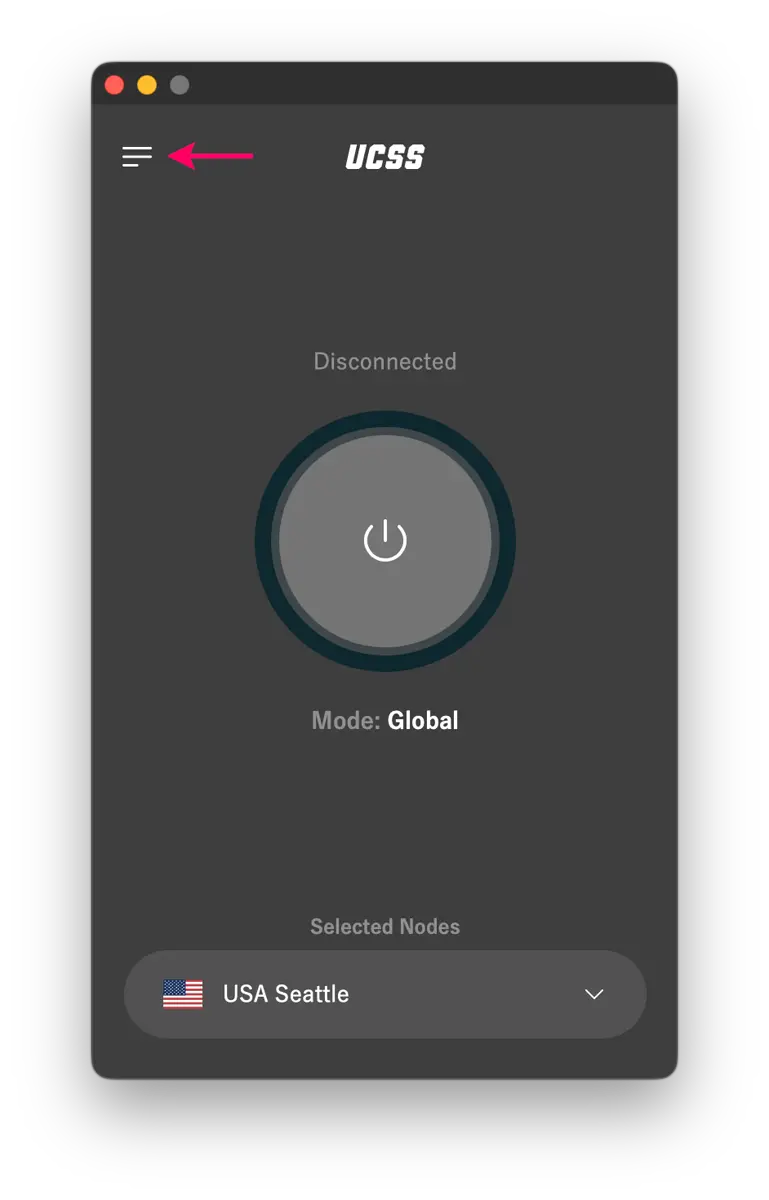
Click the menu button in the top-left corner of the app.
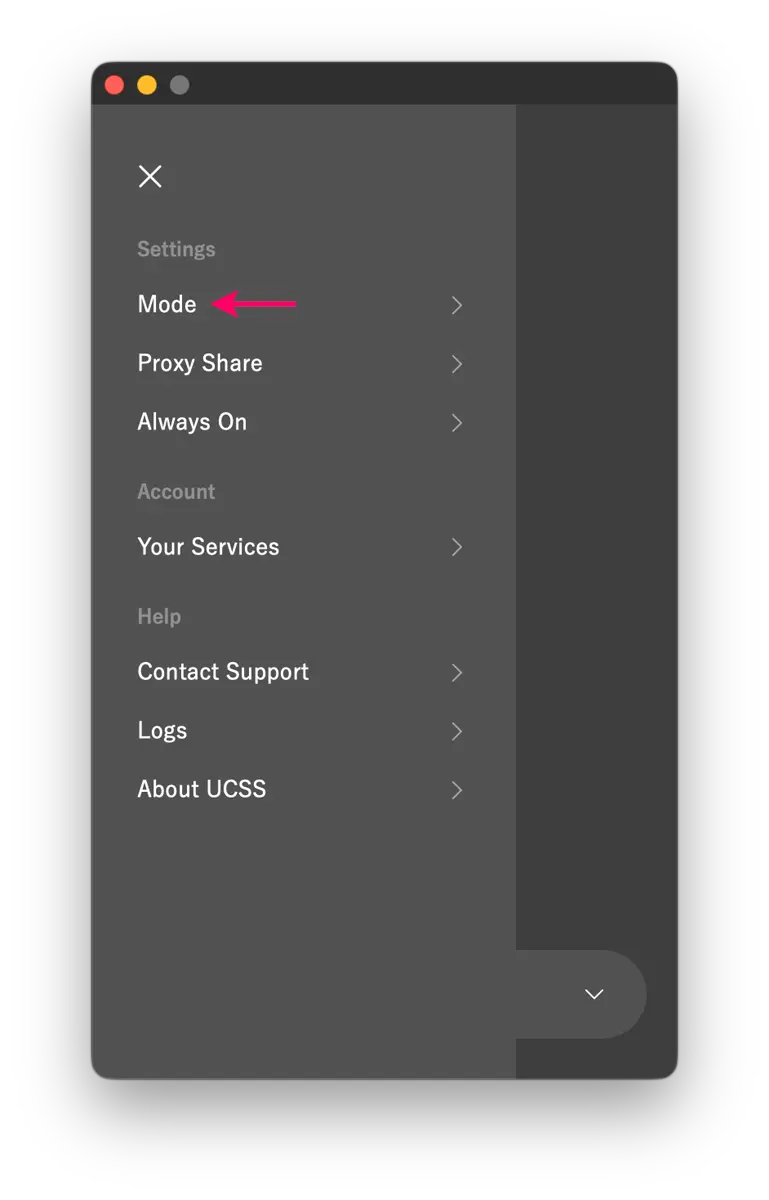 Click “Mode.”
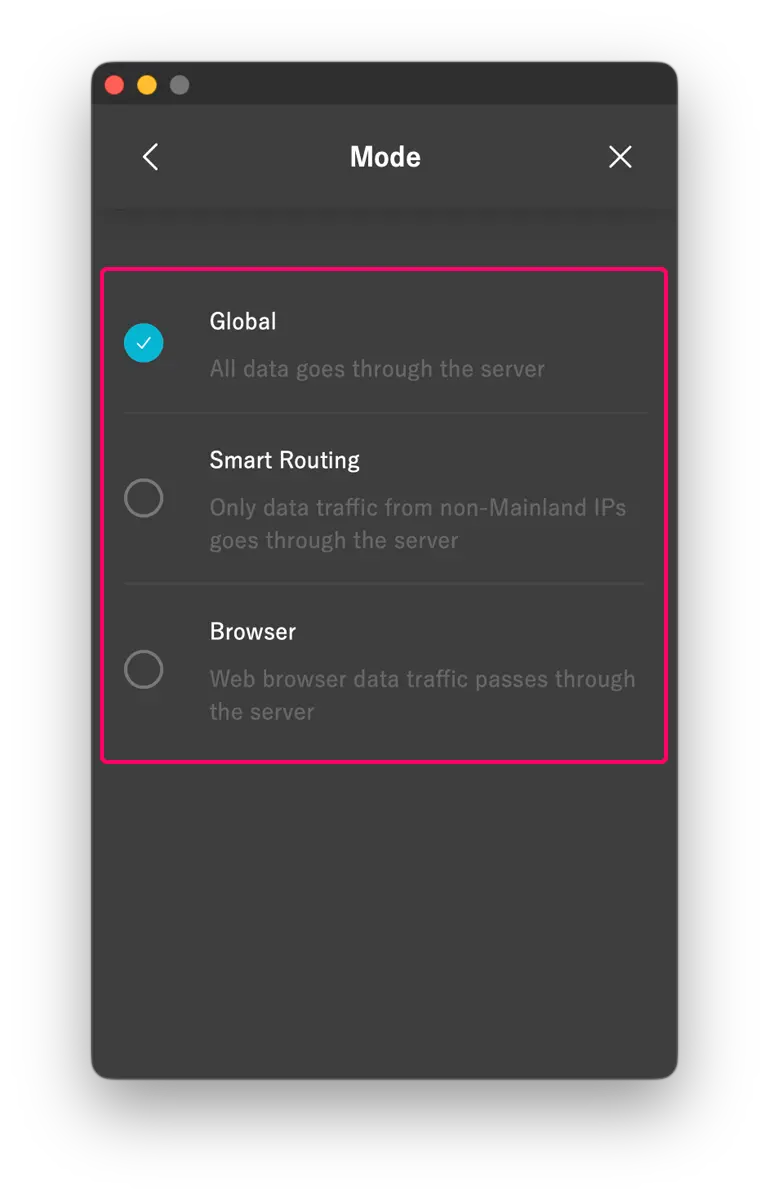
The best UCSS connection mode depends on how you use the service.
- Global: Suitable for Global plan users, as well as those who use UCSS for gaming or prefer to route all of their traffic through UCSS servers. This mode can be used both inside and outside China.
- Smart Routing: Designed for users in China who also need access to Chinese apps and services. Traffic to non-Chinese IP addresses is routed through UCSS servers, while traffic to Chinese IP addresses is handled separately.
- Browser: Suitable if you only need to use UCSS in a web browser. Web browser traffic is routed through UCSS servers.
If routing all of your traffic through UCSS isn't a priority, choose the mode that best fits how you use the service.
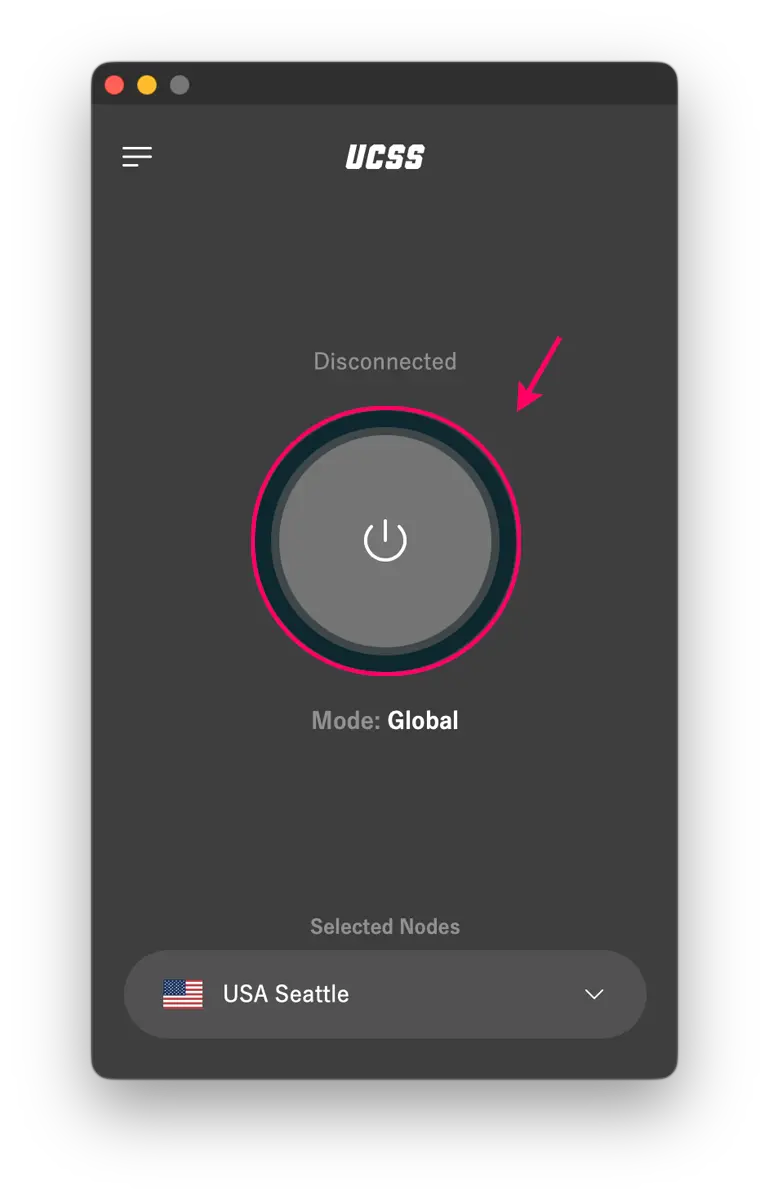
Once you've selected a server and connection mode, click the button in the center of the app to connect to the VPN.
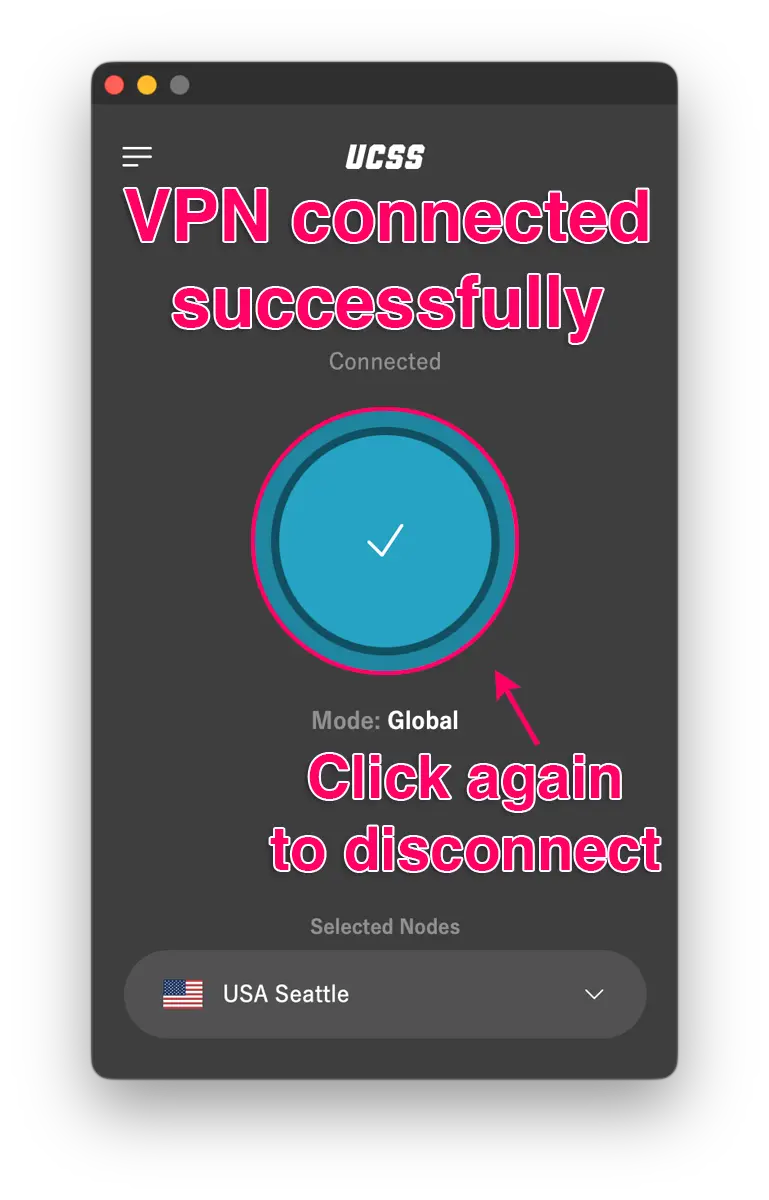
Once the app shows “Connection Complete,” the VPN connection is active and ready to use.
While you're connected, you may see a VPN indicator at the top of the screen.
To disconnect from UCSS, click the button in the center of the app again.
Using a VPN can sometimes reduce your internet speed because your traffic has to pass through an additional VPN server. If you don't need the VPN, you can disconnect and reconnect whenever necessary.
Haven't Signed Up for UCSS Yet?
- UCSS Official Website
- How to Sign Up for UCSS VPN: Registration and Setup Guide
- UCSS Review | Performance, Speed, and Test Results
UCSS Setup Guides
